Out of the box, OpenClaw can think but it cannot look things up. A fresh install ships without a web search provider, so the first time you ask your agent about anything newer than its model's training data, it will either admit defeat or quietly improvise. The fix takes about five minutes: plug in the Brave Search API. We host OpenClaw instances for a living at PlusAgents, and Brave is the search provider we see configured more than any other. This guide walks through the whole setup: the key, the config, the testing, the tuning, and the new Brave skill for power users.
Why Brave is the default answer
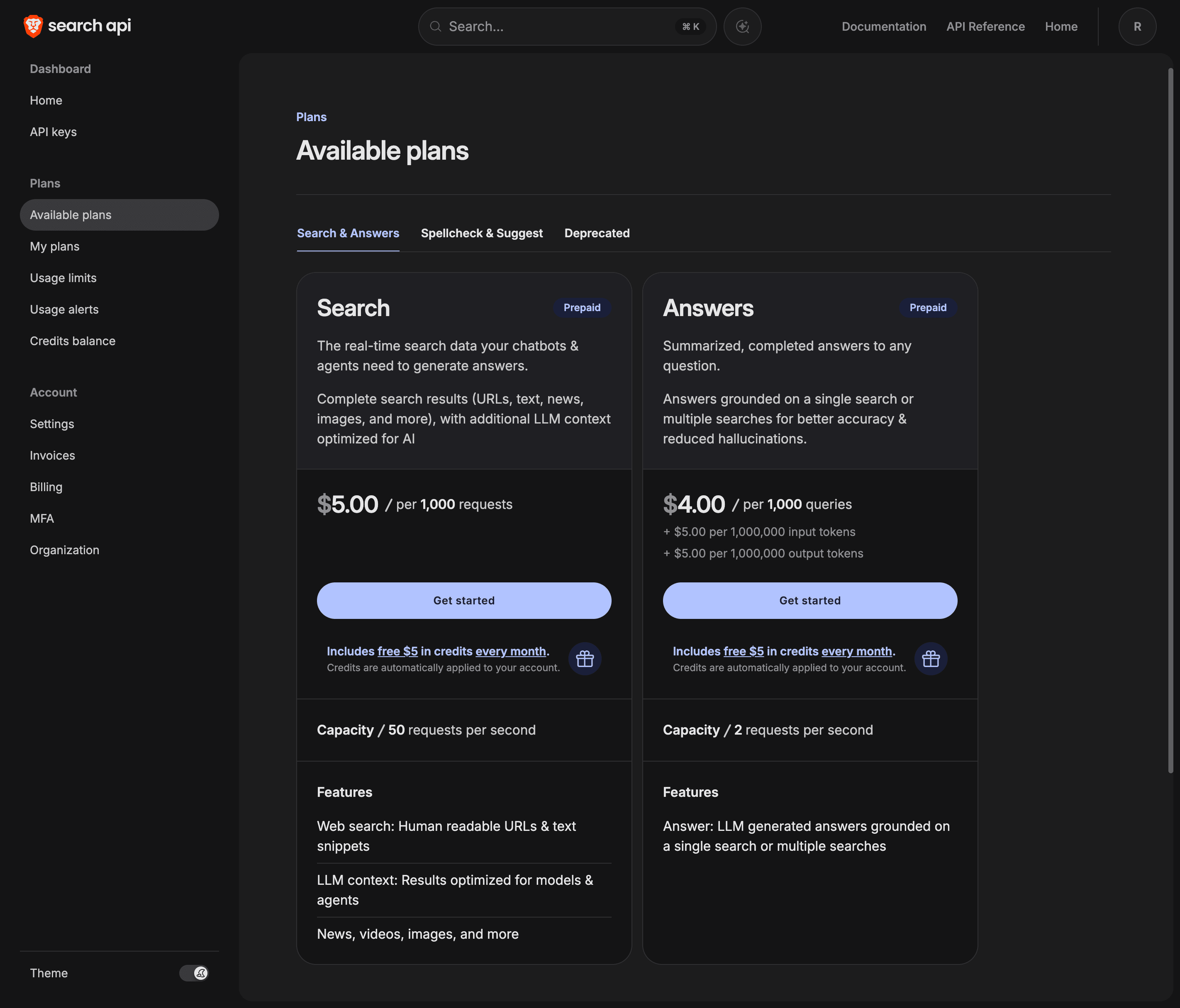
OpenClaw supports a small crowd of search providers (Perplexity, Exa, Firecrawl, DuckDuckGo and friends), but Brave is the one the configuration wizard reaches for first, and the one the community actually uses. Three reasons. First, Brave runs its own independent index of the web rather than reselling Google or Bing results, which makes it less SEO-gamed and genuinely privacy-respecting. Second, it was built as an API for AI agents, with an LLM-ready context mode we will get to later. Third, the pricing is hard to argue with: every plan includes $5 of free credit that renews every month, and the Search plan costs $5 per 1,000 requests. That is roughly 1,000 free queries a month, which comfortably covers a personal assistant's daily habits.
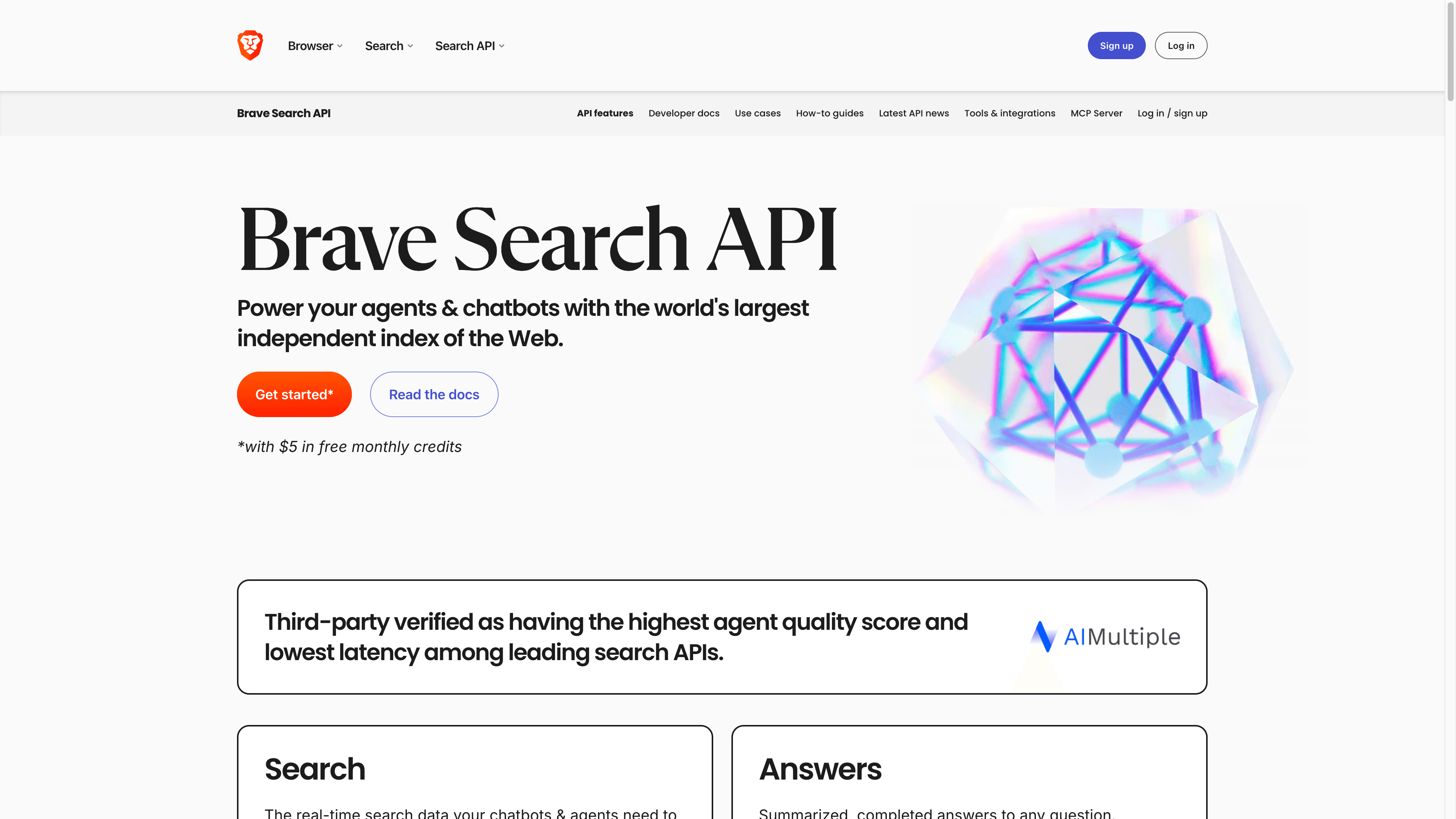
One footnote for early adopters: if you still have Brave's original free plan (2,000 queries per month), it keeps working, but it does not include newer features like the LLM Context endpoint. New setups should use the Search plan.
Step 1: get a Brave API key
- Create an account at the Brave Search API dashboard. Email and password, no drama.
- Under "My subscriptions", subscribe to the Search plan. The $5 monthly credit applies automatically.
- Set a usage limit in the dashboard. This is optional but wise: with a cap at $5 your usage stays free forever, and no runaway agent can surprise your credit card.
- Go to the "API Keys" section, generate a key, and copy it somewhere safe.
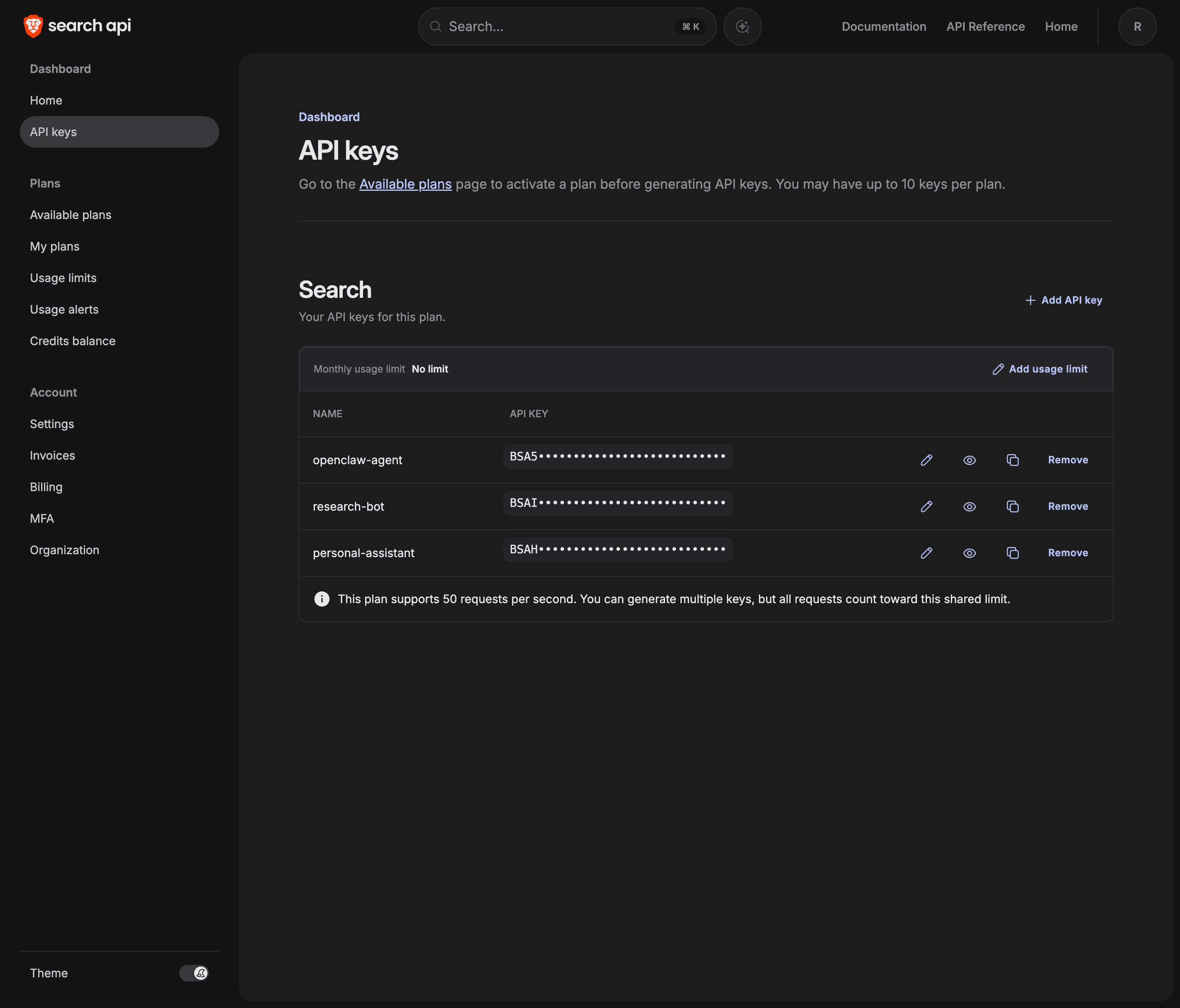
Security note: your Brave key is a credential like any other. Do not commit it, do not paste it into public chats, and if it ever leaks, revoke it in the dashboard immediately. A usage cap limits the blast radius either way.
Step 2: tell OpenClaw about it
There are three ways to hand the key to OpenClaw. They all end in the same place, so pick the one that matches your temperament.
The wizard (recommended)
openclaw configure --section webOpenClaw's interactive wizard asks which web search provider you want, prompts for the key, validates it, and writes it to the right spot in the config. No JSON, no typos, no folklore from old blog posts.
The config file
If you prefer editing config directly (or you script your deployments), open ~/.openclaw/openclaw.json. The canonical home for the key is plugins.entries.brave.config.webSearch.apiKey, and the provider switch lives under tools.web.search:
{
  "plugins": {
    "entries": {
      "brave": {
        "config": {
          "webSearch": {
            "apiKey": "YOUR_BRAVE_API_KEY"
          }
        }
      }
    }
  },
  "tools": {
    "web": {
      "search": {
        "provider": "brave",
        "maxResults": 5,
        "timeoutSeconds": 30
      }
    }
  }
}
You will find older guides that put the key at tools.web.search.apiKey. That path still loads through a compatibility shim, but it is legacy: the Brave plugin reads the plugins path first, so new setups should use it and save themselves a confusing afternoon later.
The environment variable
export BRAVE_API_KEY="your-key-here"OpenClaw picks up BRAVE_API_KEY from the Gateway's environment as a fallback. This is the natural route for Docker and other containerized setups where config files are less convenient than env vars.
Whichever route you took, restart the Gateway so it picks up the change:
openclaw gateway restart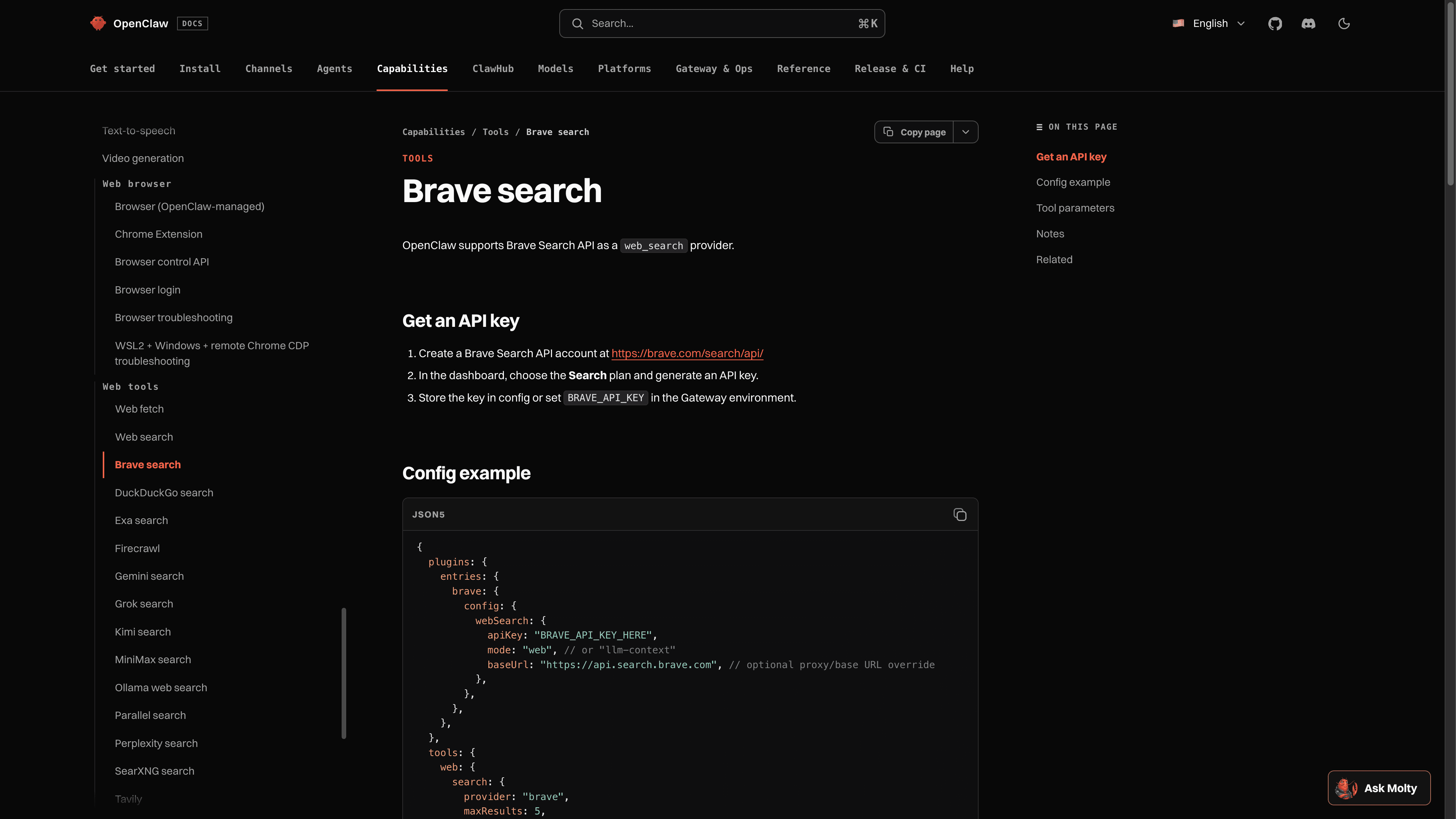
Step 3: prove it works
Ask your agent something its model cannot possibly know: "What shipped in the latest OpenClaw release this week?" or "What is the weather in Lisbon right now?". Watch it call the web_search tool and come back with an answer plus sources and URLs it did not have five seconds ago. That is the whole test. If the agent answers from memory instead of searching, tell it explicitly to search the web; if the tool errors, jump to the troubleshooting section below (spoiler: it is almost always the restart).
Tuning it: the settings that actually matter
- maxResults. How many results a search returns, from 1 to 10 (default 5). More results mean more context and more tokens; 5 is a sane default.
- Freshness and date filters. The agent can restrict results to the past day, week, month or year, or pin an exact date range. Useful for "what changed since..." questions where stale results are worse than none.
- Country and language. Searches can be localized, for example country DE with language de for German results. If you work in more than one language, your agent quietly benefits from this.
- llm-context mode. Setting webSearch.mode to "llm-context" in the plugins config switches from classic results (title, URL, snippet) to Brave's LLM Context API, which returns pre-extracted text chunks ready for grounding. Fewer follow-up page fetches, better answers on research-heavy tasks.
- Caching. Identical searches are cached for 15 minutes by default (configurable via cacheTtlMinutes), so an enthusiastic agent does not burn your quota re-asking the same question.
The power-user route: Brave's bx CLI as a skill
In 2026 Brave shipped bx, a zero-dependency command-line client for the Search API built specifically for AI agents, plus an official OpenClaw skill that teaches your agent to use it. Compared to the built-in provider you gain the fancy endpoints: bx context returns token-budgeted, pre-extracted web content in one call, and Goggles let you re-rank results with custom rules (boost documentation, bury SEO spam). If the built-in provider is a search box, bx is a research assistant.
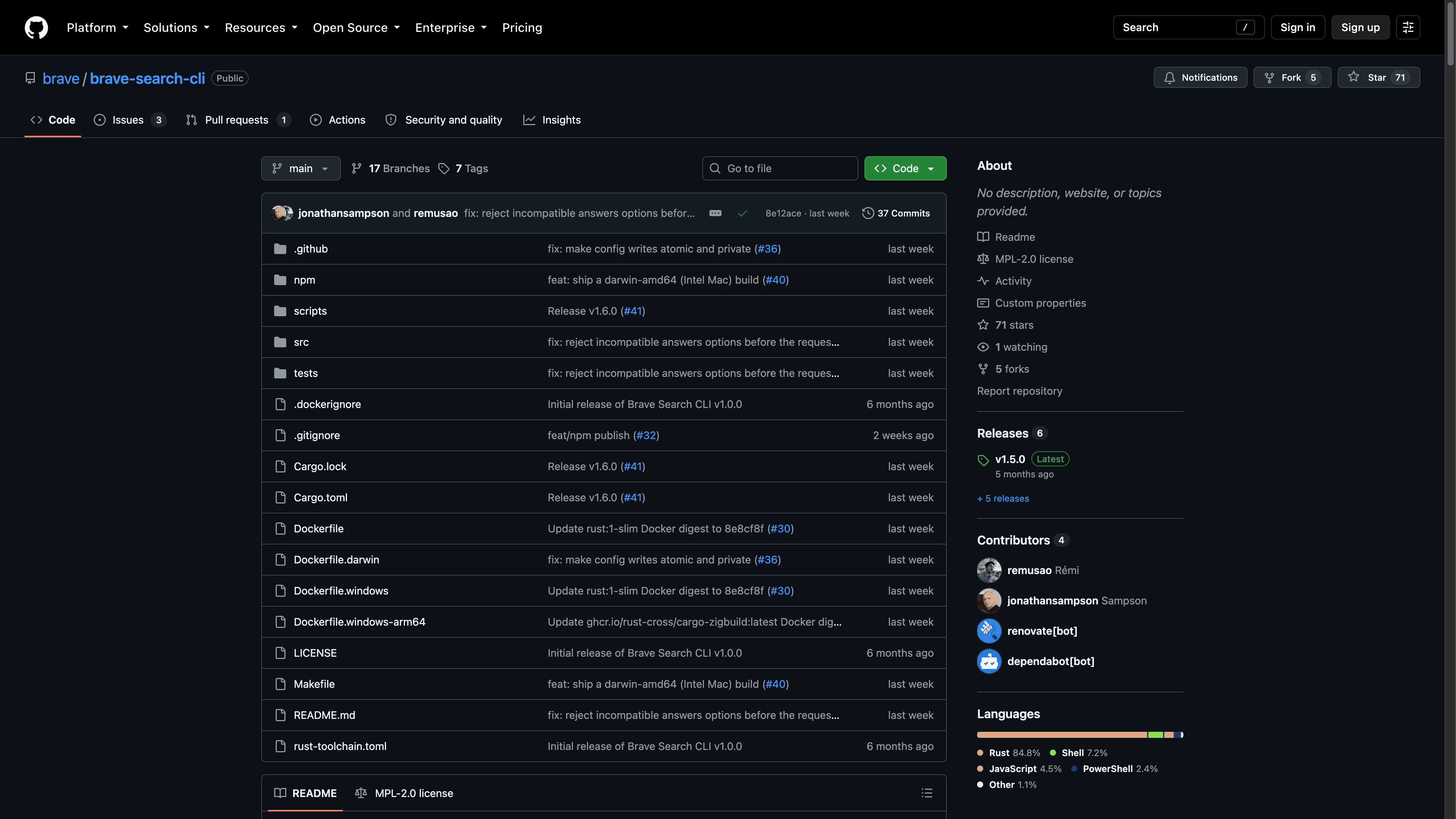
First, install the CLI with the official script (it prints where the binary landed, typically ~/.local/bin):
curl -fsSL https://raw.githubusercontent.com/brave/brave-search-cli/main/scripts/install.sh | shSecond, set your key by running bx config set-key with no argument: it prompts interactively, which keeps the key out of your shell history. Third, let OpenClaw find the binary, then restart the Gateway:
openclaw config set tools.exec.pathPrepend '["/home/you/.local/bin"]'
openclaw gateway restart
Finally, install the skill from ClawHub:
openclaw skills install bx-searchFrom then on your agent prefers bx for web research. You can also invoke it explicitly with /skill bx-search "your query", handy when the agent stubbornly reaches for its built-in tool instead. Both setups coexist fine: the built-in Brave provider is the reliable baseline, the skill is the upgrade.
On PlusAgents: paste the key in chat
If your OpenClaw runs on PlusAgents, there is no terminal and no file editing in your future. Your agent has full access to its own configuration, so the entire setup is one chat message: "Here is my Brave Search API key: BSA... Configure yourself to use Brave for web search, then restart your gateway." The agent writes the key to the canonical config path, restarts, and confirms. It is a strange feeling the first time, asking software to reconfigure itself, and it is also the whole point of running an agent.
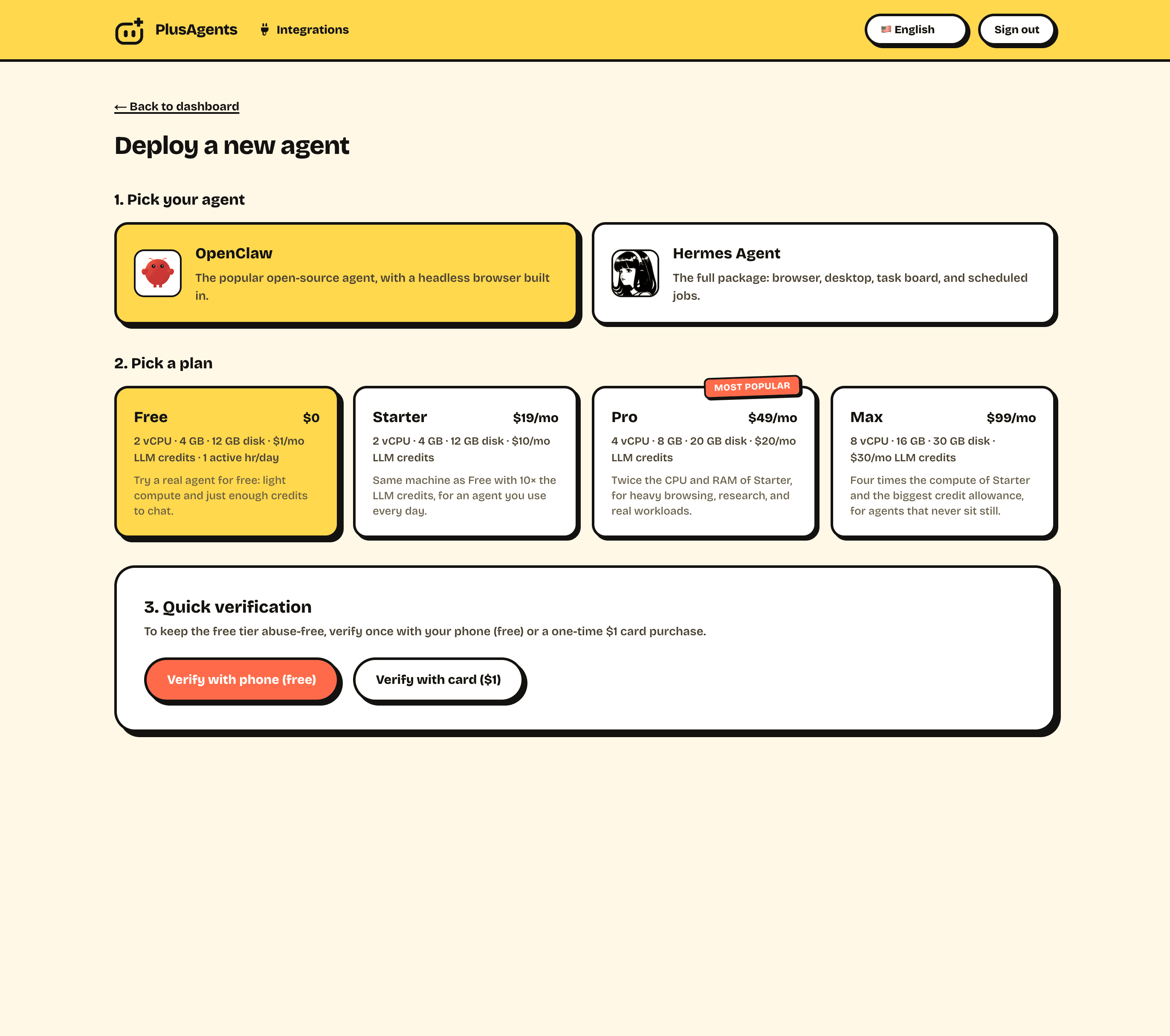
If you do not have an agent yet, the free plan gets you a real OpenClaw instance in about a minute, LLM credits included, and our deployment guide compares every other way of running it.
Troubleshooting and staying safe
- Changed the config, nothing happened? Restart the Gateway. This is the number one "it does not work" report, and openclaw gateway restart is the fix.
- Errors or empty results? Check in the Brave dashboard that your subscription is active and the key is the one you think it is. Keys from a deleted subscription fail quietly.
- Hitting limits? The free credit covers about 1,000 queries a month. A research-heavy agent can burn through that, so watch the usage graph in the dashboard and raise your cap deliberately, not accidentally.
- Need real diagnostics? Enable the brave.http diagnostics flag and OpenClaw logs request URLs, response timing and cache hits or misses. It never logs your API key.
- Key hygiene. Set a usage cap, avoid passing the key as a command-line flag (it lingers in shell history), and revoke it in the dashboard the moment you suspect a leak.
That is it: your agent can now actually research instead of confidently remembering. If you are still early in your OpenClaw journey, our guide on how to use OpenClaw turns a fresh install into a daily assistant in a week, and if you are not sure what OpenClaw even is, start here.
The five-minute version: create a Brave Search API account, subscribe to the Search plan (the $5 monthly credit makes ~1,000 queries free), generate a key, run openclaw configure --section web, paste it, restart the Gateway, and ask your agent something from this morning's news. On PlusAgents, skip the terminal entirely: paste the key in chat and your agent configures itself.
Ready to meet your agent?
Deploy OpenClaw or Hermes Agent in one click. Free to start.
Deploy my agent for free